

AOMEI Backupper Pro Family | Windows




We advise you personally
Directly accessible for private and business customers.

We are happy to help!
Mon. - Fri.: 9:00 a.m. - 2:00 p.m.
Prices incl. VAT plus shipping costs
Instant download + product key
- Order number: SWI24-701254
- Devices: 5 PCs
- Runtime: Permanently valid
- Language: All languages
- Country zone: Worldwide
- Shipping method: E-Mail
- Manufacturer: AOMEI







What's Included
- Instant delivery – Key & download via email
- Activation guarantee – Permanent access, quality assured
- Installation guide – Simple & easy to follow, included
- VAT invoice – Official proof of purchase included
AOMEI Backupper Pro Family | Windows - Your Backup Solution
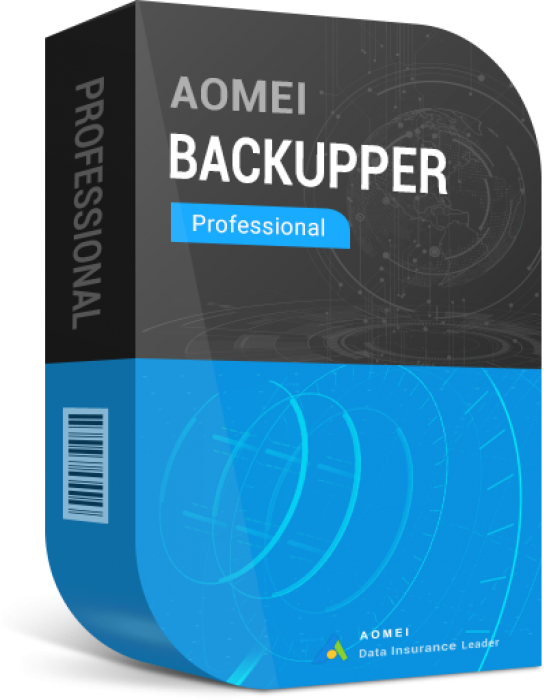
AOMEI Backupper Pro Family
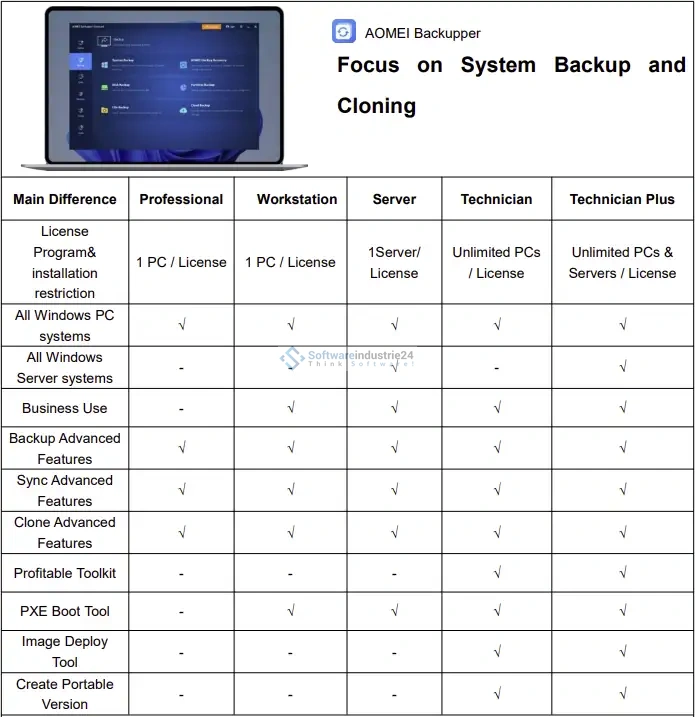
AOMEI Backupper Pro Family for Windows is a premium backup and recovery software specially designed to protect your data and manage your systems safely and efficiently. This software offers a variety of features that go far beyond traditional backup, allowing you to easily back up and restore your important files, applications and operating systems.
Why AOMEI Backupper Pro Family is the best choice
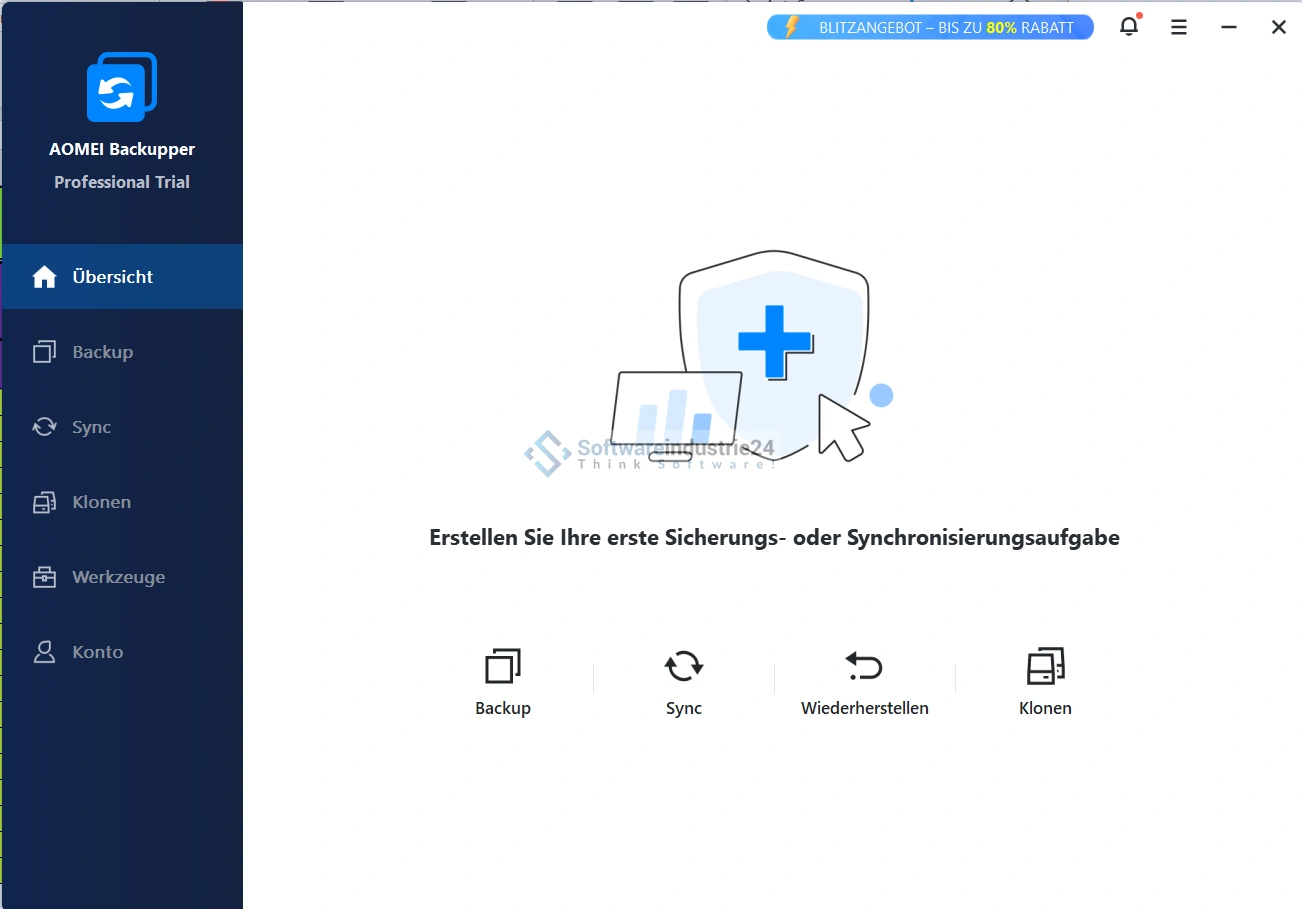
User-friendly interface
AOMEI Backupper Pro Family is characterized by a user-friendly and intuitive interface. Even if you have no prior technical knowledge, you will be able to understand and use the software quickly. The clear instructions and uncluttered design ensure that you can manage your backups effortlessly.
Comprehensive backup options
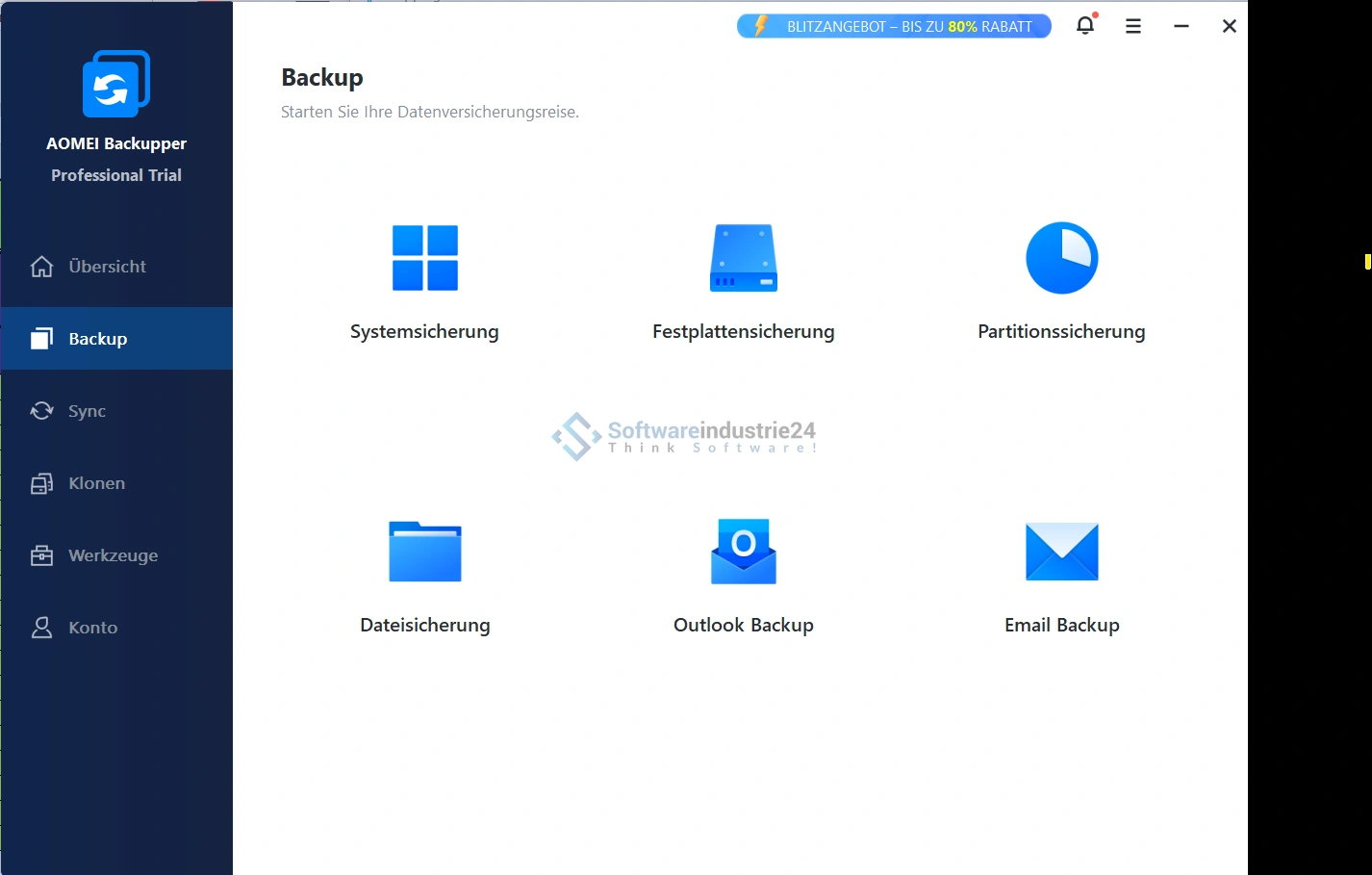
With AOMEI Backupper Pro Family, you can create full system backups, disk backups, partition backups and file backups. This means that no matter what type of data you want to protect, you have the right solution at hand. The software also supports incremental and differential backups, allowing you to save disk space while ensuring regular updates to your backups.
Reliable recovery
AOMEI Backupper Pro Family's restore options are as versatile as its backup options. You can restore your system, hard disks or individual files from a backup. The software also offers a universal restore function that allows you to restore your system to a different hardware, which is especially useful when you are setting up a new computer or need to get back to work quickly after a hardware failure.
Hard disk and partition cloning
Another outstanding feature of AOMEI Backupper Pro Family is the ability to clone disks and partitions. This is especially helpful if you want to upgrade your hard disk to a larger or faster one without having to reinstall the operating system and applications. The cloning process is quick and straightforward and ensures that all your data remains safe and intact.
Flexible schedules and automated backups
To ensure your data is always backed up to date, AOMEI Backupper Pro Family offers flexible schedules for automatic backups. You can set up daily, weekly or monthly backup schedules and ensure that your data is backed up regularly without manual intervention. The software also supports event triggers such as system startup or user login to trigger automatic backups.
Feature Overview of AOMEI Backupper Pro Family
System Backup and Restore
AOMEI Backupper Pro Family allows you to backup your entire system including operating system, applications and settings. This feature is especially useful when you want to protect your system from viruses, malware or hardware failures. In the event of a problem, you can quickly and easily restore your system to its previous state.
Hard disk and partition backup
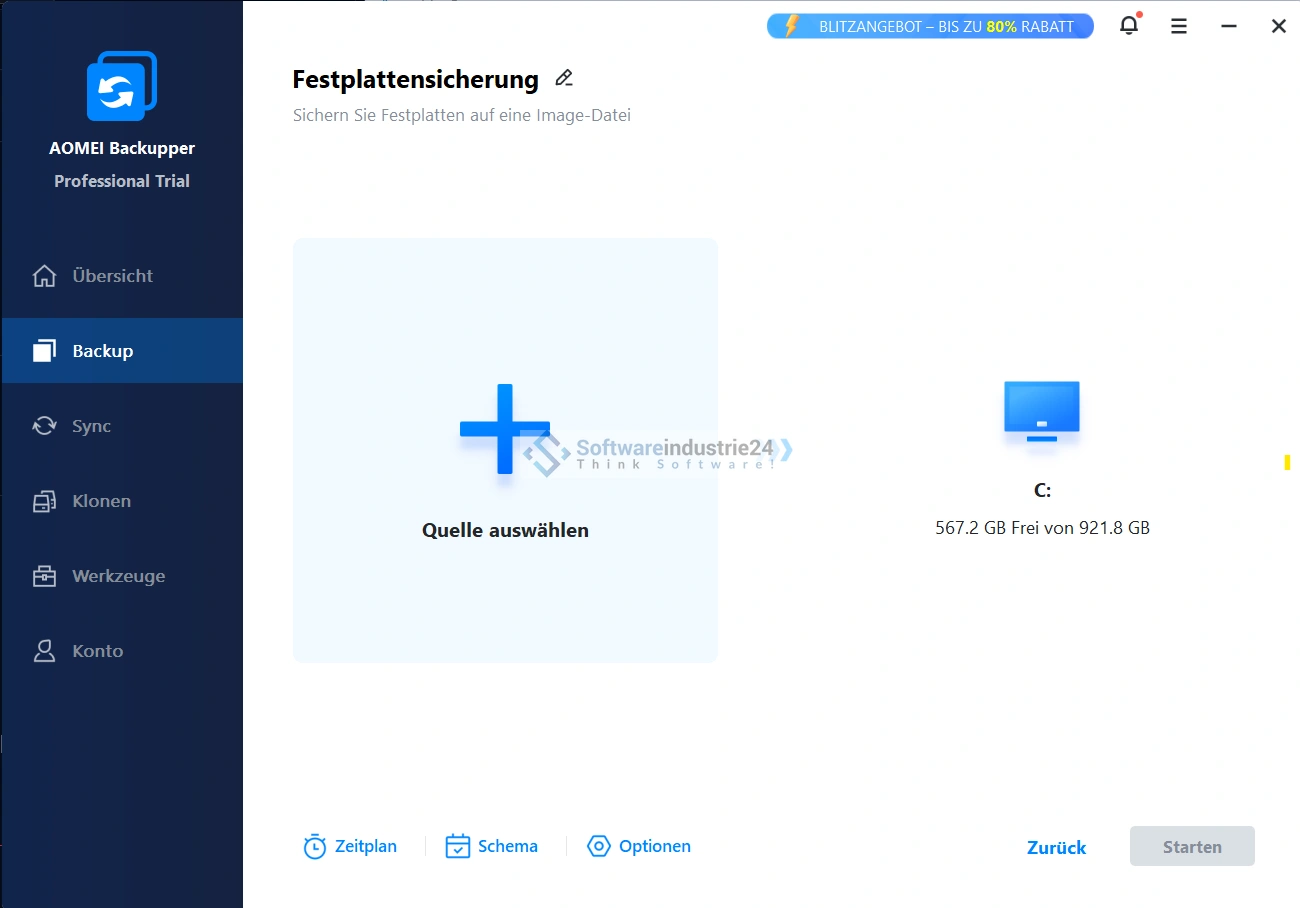
Create complete backups of your hard disks or individual partitions. This feature allows you to back up all data on a specific hard disk or partition, including the operating system, applications and all files. This is ideal for ensuring that all your data is protected in the event of a hard disk failure.
File Backup
AOMEI Backupper Pro Family allows you to backup specific files and folders. This feature is especially useful if you only want to protect certain important data such as documents, photos or videos without having to perform a full system or hard disk backup.
Incremental and differential backups
Save storage space and reduce backup time with incremental and differential backups. An incremental backup only backs up the data that has changed since the last backup, while a differential backup backs up all data that has changed since the last full backup. Both methods help to maximize the efficiency of your backups.
Cloning disks and partitions
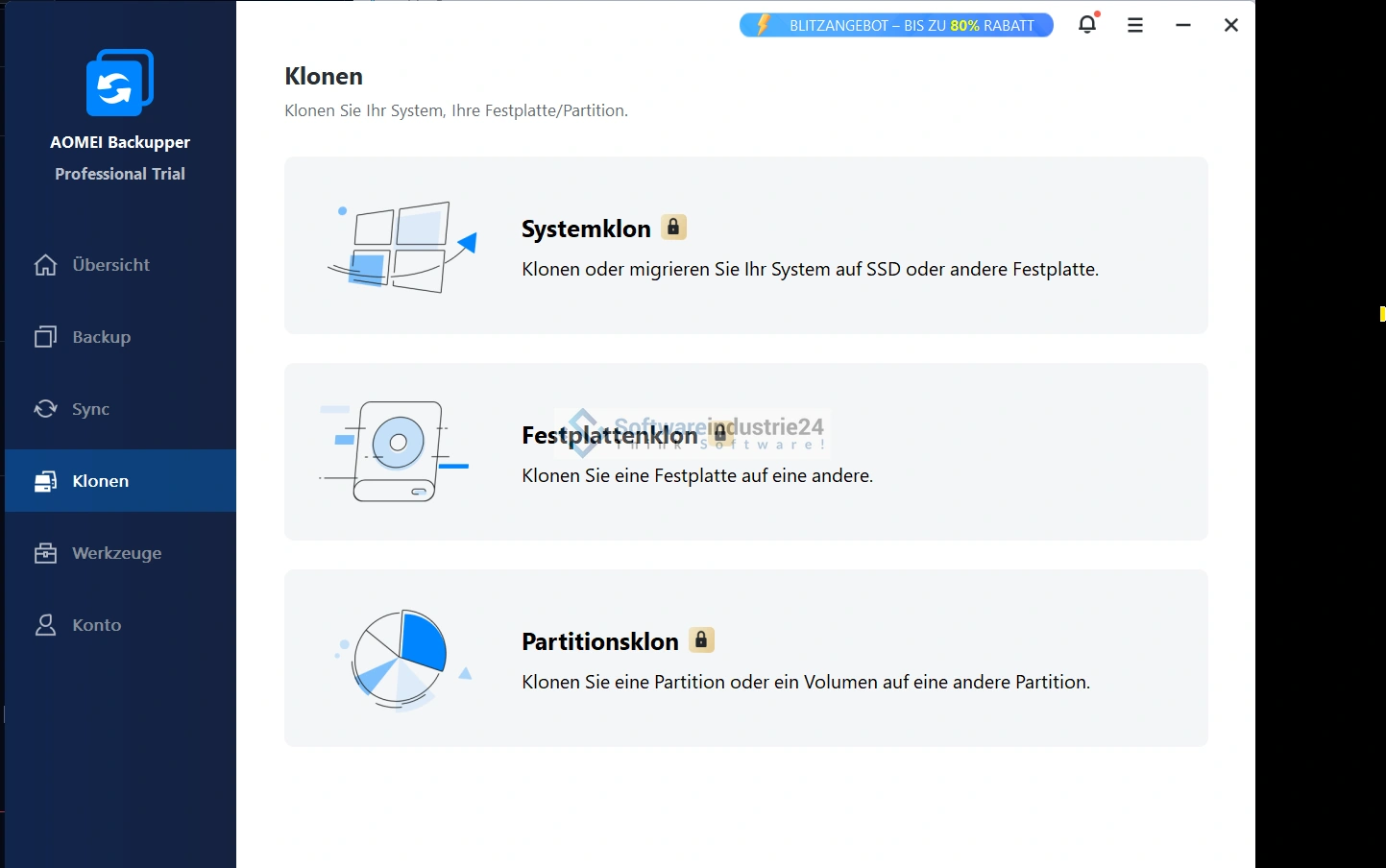
The clone function of AOMEI Backupper Pro Family allows you to clone your disk or partition to another disk or partition. This is especially helpful when you want to upgrade your hard disk or transfer your data to a new hard disk. The cloning process is quick and easy and ensures that all your data remains safe and intact.
Universal restore
The universal restore function allows you to restore your system to different hardware. This is particularly useful if you are setting up a new computer or need to get back up and running quickly after a hardware failure. The universal restore ensures that your system runs smoothly on the new hardware.
Create bootable media
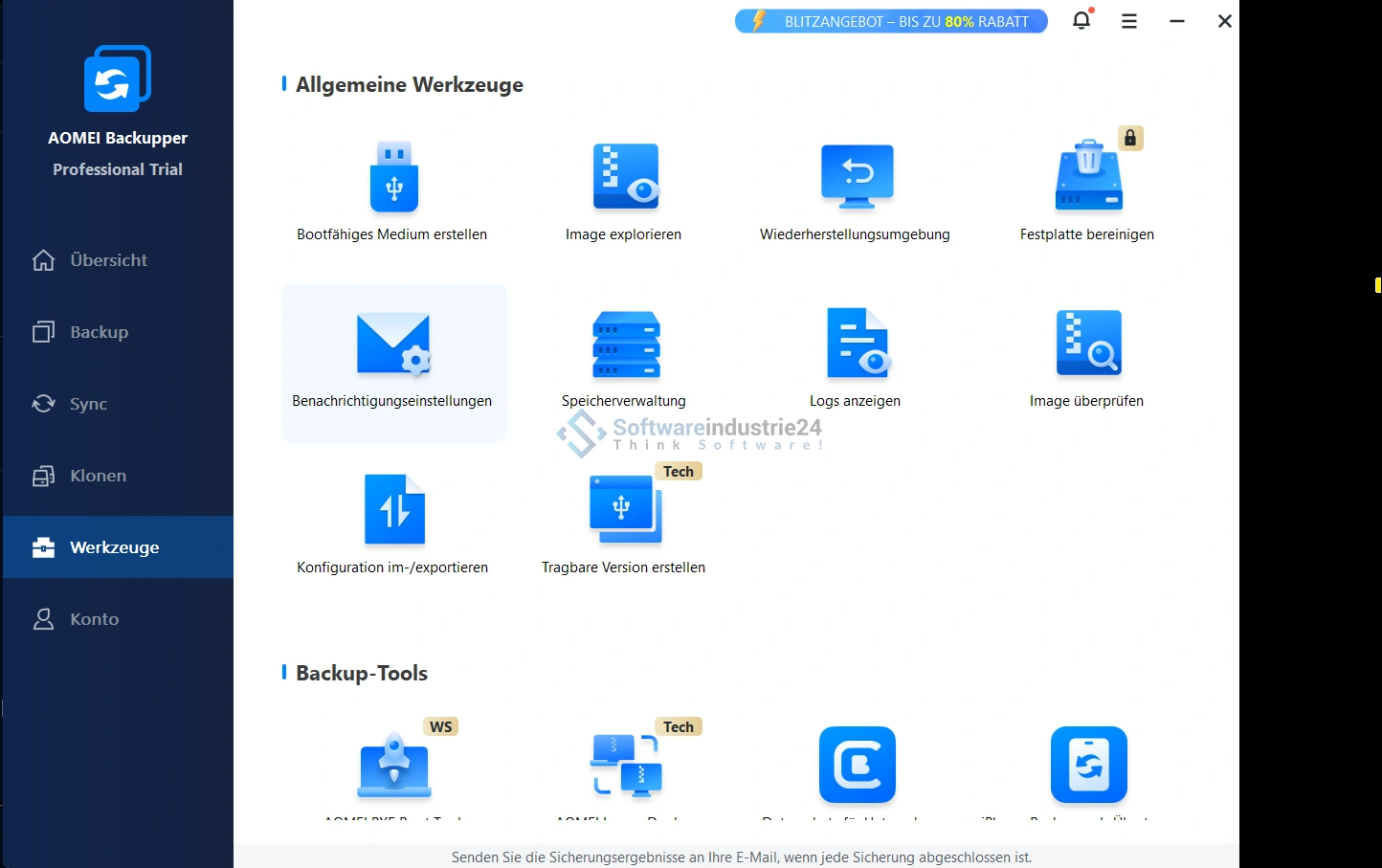
Create a bootable media with AOMEI Backupper Pro Family to restore your system even if it fails to boot. You can create a bootable USB drive or bootable CD/DVD to boot and restore your system even if the operating system is corrupted.
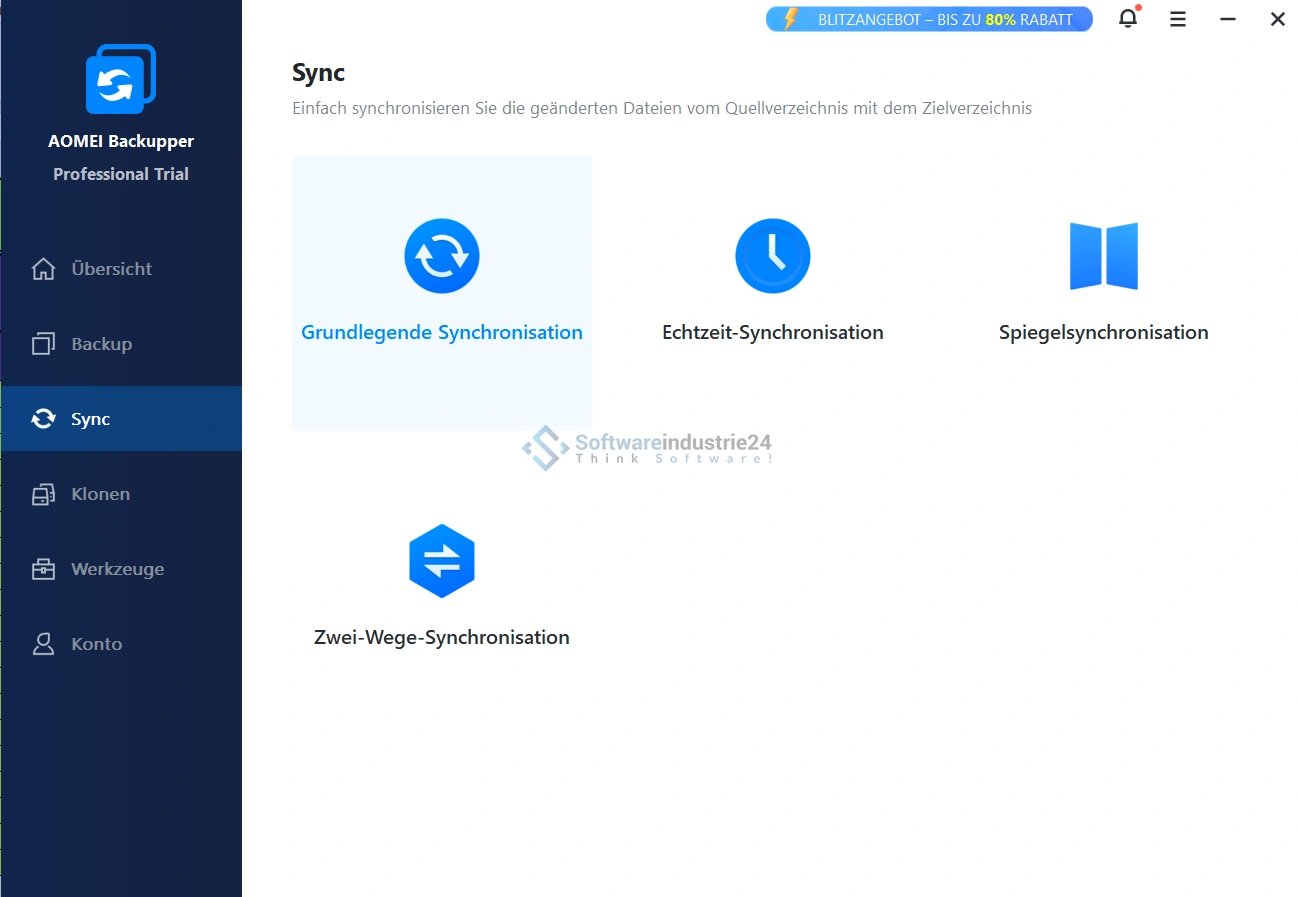
Synchronization of files and folders
The file synchronization function allows you to synchronize files and folders between different storage locations. This is particularly useful if you want to ensure that your important data is always up to date on multiple devices or storage locations.
Backup compression and encryption
Save storage space and protect your backups with AOMEI Backupper Pro Family's backup compression and encryption features. The compression function reduces the size of your backups, while the encryption function ensures your data is protected from unauthorized access.
Cloud storage support
Store your backups in the cloud for added protection and easy access. AOMEI Backupper Pro Family supports various cloud storage services, so you can safely and conveniently store your backups in the cloud.
Step-by-step guide on how to use AOMEI Backupper Pro Family
Installation and first steps
- Download and Install: Visit the official website of AOMEI Backupper Pro Family or download it on Softwareindustrie24 and download the installation file. Run the installation file and follow the instructions to install the software on your computer.
- Initial Setup: After installation, open AOMEI Backupper Pro Family and set up your first backup. Select the type of backup you want to perform (e.g. system backup, disk backup, partition backup or file backup).
- Select the data to be backed up: Select the files, folders, partitions or disks you want to back up. AOMEI Backupper Pro Family provides a user-friendly interface that makes it easy for you to select the data you want.
- Select the storage location: Choose the storage location for your backup. You can store your backup on an external hard disk, network storage or in the cloud.
- Customize backup settings: Customize the settings for your backup, such as the compression level, encryption options and backup schedule. AOMEI Backupper Pro Family provides flexible options to ensure your backup meets your needs.
- Start Backup: Click “Start” to start the backup. AOMEI Backupper Pro Family will display the progress of the backup and notify you when the backup is complete.
Restore your data
- Select the restore mode: Open AOMEI Backupper Pro Family and select the restore mode (e.g. System Restore, Disk Restore, Partition Restore or File Restore).
- Backup Selection: Select the backup you want to restore. AOMEI Backupper Pro Family will display a list of your backups so you can easily find the backup you want.
- Customize Restore Options: Customize the restore options, such as restore destination and restore settings. You can choose whether you want to restore the entire backup or only certain files and folders.
- Start Restore: Click “Start” to start the restore. AOMEI Backupper Pro Family will display the progress of the restore and notify you when the restore is complete.
Clone disks and partitions
- Select Clone Mode: Open AOMEI Backupper Pro Family and select the clone mode (e.g. Disk Clone or Partition Clone).
- Select source and destination disk: Select the source and destination disk you want to clone. AOMEI Backupper Pro Family provides a clear and simple user interface that allows you to select the right disks.
- Customize Clone Settings: Customize the clone settings, such as the size of partitions on the target hard drive and the orientation of partitions for SSDs. AOMEI Backupper Pro Family provides flexible options to ensure the cloning process meets your needs.
- Start Cloning: Click “Start” to start the cloning process. AOMEI Backupper Pro Family will display the progress of the cloning process and notify you when the cloning process is complete.
Advantages of AOMEI Backupper Pro Family
Data loss protection
AOMEI Backupper Pro Family provides comprehensive protection against data loss. Whether you want to back up your important files, your operating system or your entire hard disks, this software ensures that your data is safe and recoverable. This is especially important at a time when data loss due to hardware failure, virus attacks or human error can occur at any time.
Simple data migration
With the clone function of AOMEI Backupper Pro Family, you can easily migrate your data to a new hard disk. This is especially useful when you want to upgrade your hard disk to a larger or faster one without reinstalling the operating system and applications. The cloning process is quick and straightforward and ensures that all your data remains safe and intact.
Flexibility and customization
AOMEI Backupper Pro Family offers a variety of backup and restore options that are flexible and customizable. You can customize the backup schedules, compression and encryption settings, and restore options to meet your specific needs. This ensures that your backups are efficient and secure and that your data is protected at all times.
Time and cost efficiency
By automating backups and allowing you to create incremental and differential backups, you can save time and storage space. AOMEI Backupper Pro Family allows you to perform regular backups without the need for manual intervention. This saves time and reduces the need for expensive data recovery services in the event of data loss.
Compatibility and Support
AOMEI Backupper Pro Family is compatible with a variety of Windows operating systems and supports a wide range of hardware. Whether you are using an older computer or the latest hardware, this software ensures that your data is safe and recoverable at all times. In addition, AOMEI provides excellent customer support and regular software updates to ensure your backup solution is always up to date.
AOMEI Backupper Pro Family - Your reliable backup solution
AOMEI Backupper Pro Family for Windows is a comprehensive and reliable backup and recovery solution suitable for both home and business users. With a variety of features, a user-friendly interface and flexible customization options, this software provides everything you need to protect your data and manage your systems efficiently. Whether you want to back up your important files, applications or your entire system, AOMEI Backupper Pro Family ensures that your data is safe and recoverable at all times.
Invest in AOMEI Backupper Pro Family and enjoy the security and peace of mind that only a top-notch backup solution can provide. Visit Softwareindustrie24 to learn more about this outstanding product and purchase your license today. Protect your data and secure your future with AOMEI Backupper Pro Family.
System Requirements for AOMEI Backupper Technician
To enjoy the full power and functionality of AOMEI Backupper Technician, please make sure your system meets the following requirements:
- Supported operating systems: Compatible with all Windows versions from Windows XP to Windows 11.
- Disk space: At least 300 MB of free hard disk space for installation.
- Processor: An x86 CPU or compatible processors with a clock frequency of at least 500 MHz.
- Memory: At least 256 MB RAM.
(Further details can be obtained from the manufacturer)


